How to install and configure Samba on ubuntu with Kerberos in Windows Domain

How to install and configure Samba on ubuntu with Kerberos in Windows Domain

Installing Dependencies

We start by making sure that we have the latest packages by updating the system using apt-get:

1
sudo apt-get update
1
sudo apt-get upgrade

Now that we know that we are running an updated system we can install all the dependent packages that are needed by Samba:

1
sudo apt install samba krb5-config krb5-user winbind libpam-winbind libnss-winbind

Configure pam-auth-update

1
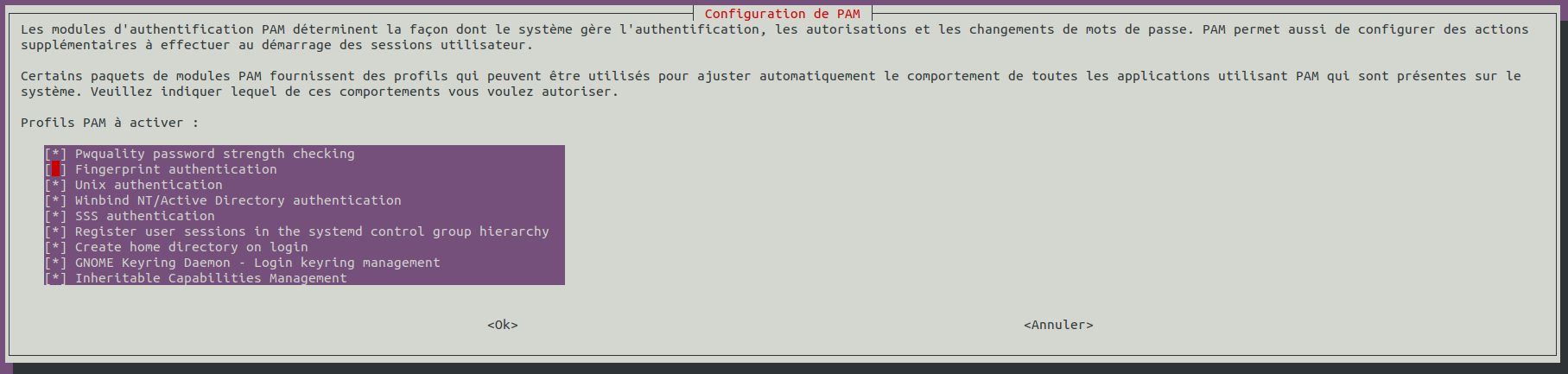
sudo pam-auth-update

You must have this same parameters:

Check the box “Create home directory on login”

Install sssd

SSSD provides a set of daemons to manage access to remote directories and authentication mechanisms such as LDAP or Kerberos. It provides an NSS and PAM interface toward the system and a pluggable backend system to connect to multiple different account sources.

1
sudo apt install sssd-ad sssd-tools realmd adcli

Discover the domain with realm

1
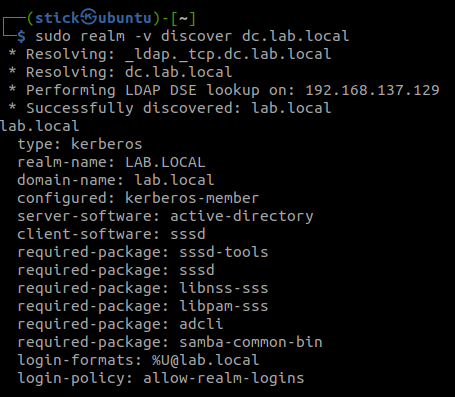
sudo realm -v discover dc.lab.local

Join the domain with an admin account from your Active Directory

1
sudo realm join -v dc.lab.local -U bud

Configure the krb5.conf file

1
2
3
4
5
6
7
8
9
10
11
12
13
14
15
16
17
18
19
20
21
22
23
24
[libdefaults]
default_realm = LAB.LOCAL
dns_lookup_realm = true
dns_lookup_kdc = true

# The following krb5.conf variables are only for MIT Kerberos.
kdc_timesync = 1
ccache_type = 4
forwardable = true
proxiable = true

# The following libdefaults parameters are only for Heimdal Kerberos.
fcc-mit-ticketflags = true
udp_preference_limit = 0

[realms]
LAB.LOCAL = {
kdc = DC.LAB.LOCAL
admin_server = DC.LAB.LOCAL
}

[domain_realm]
.lab.local = LAB.LOCAL
lab.local = LAB.LOCAL

Verify the domain membership

1
id bud

NTP with domain controller for Kerberos authentication

1
sudo apt install ntpdate
1
sudo ntpdate dc.lab.local

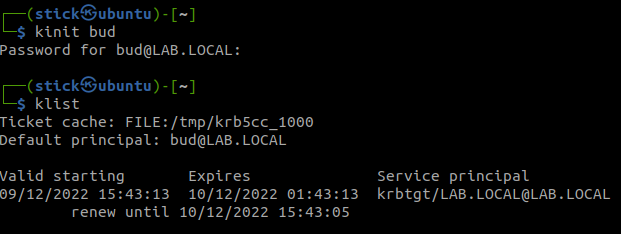
Check the correct functioning of Kerberos

1
kinit bud
1
klist

Create the share directory

1
sudo mkdir /srv/share

Edit the smb.conf file

1
sudo vim /etc/samba/smb.conf
1
2
3
4
5
6
7
8
9
10
11
12
13
14
15
16
17
18
19
20
21
22
23
24
25
26
27
28
29
30
31
32
33
34
35
36
37
38
39
40
41
42
43
44
45
46
47
48
49
50
51
52
53
54
55
56
57
58
59
60
61
62
63
64
65
66
[global]

## Browsing/Identification ###

# Change this to the workgroup/NT-domain name your Samba server will part of
workgroup = LAB
security = ADS
realm = lab.local
kerberos method = secrets and keytab
passdb backend = tdbsam
encrypt passwords = yes

# server string is the equivalent of the NT Description field
server string = %h server (Samba, Ubuntu)

#### Debugging/Accounting ####

# This tells Samba to use a separate log file for each machine
# that connects
log file = /var/log/samba/log.%m
log level = 3
# Cap the size of the individual log files (in KiB).
max log size = 1000

# We want Samba to only log to /var/log/samba/log.{smbd,nmbd}.
# Append syslog@1 if you want important messages to be sent to syslog too.
logging = file

# Do something sensible when Samba crashes: mail the admin a backtrace
panic action = /usr/share/samba/panic-action %d


####### Authentication #######

server role = member server

obey pam restrictions = yes

unix password sync = yes

passwd program = /usr/bin/passwd %u
passwd chat = *Enter\snew\s*\spassword:* %n\n *Retype\snew\s*\spassword:* %n\n *password\supdated\ssuccessfully* .

pam password change = yes

map to guest = bad user

########## Domains ###########

idmap config LAB.LOCAL : backend = sss
idmap config LAB.LOCAL : range = 200000-2147483647
idmap config * : backend = tdb
idmap config * : range = 100000-199999

usershare allow guests = yes

#======================= Share Definitions =======================

[share]
comment = Mon partage
path = /srv/share
public = no
writable = yes
guest ok = no
create mask = 660
directory mask = 770

Use this command to initialize winbind

1
sudo net ads join -U bud

Check the functioning of the services and restart

1
2
sudo systemctl status winbind smbd nmbd sssd
sudo systemctl restart winbind smbd nmbd sssd

Configure the share’s permissions

We want that other or everyone in Windows have no access to the share.

1
sudo setfacl -m other:--- /srv/share/

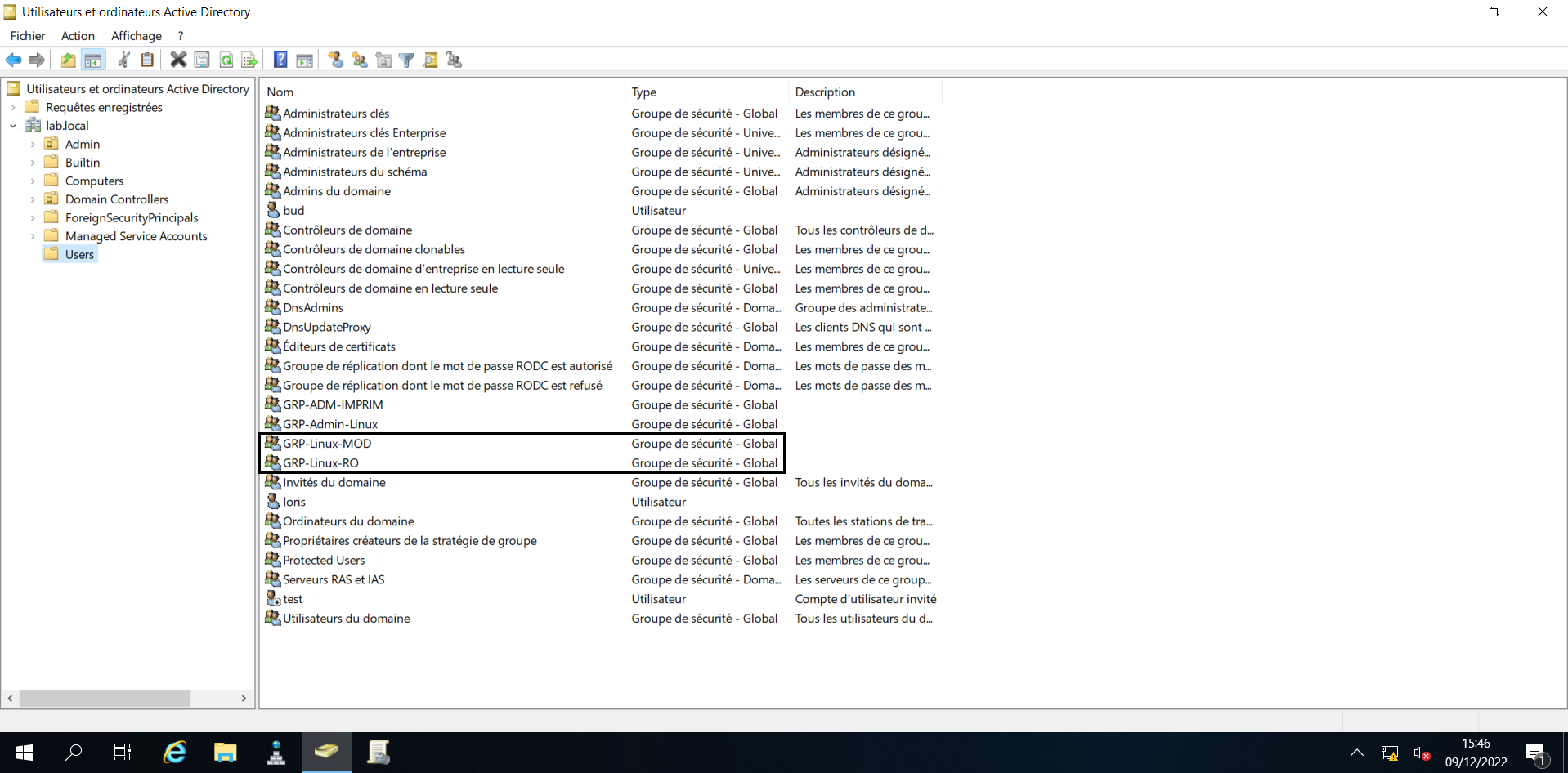
We want two groups :

  • The first can modify the documents
    1
    sudo setfacl -m g:GRP-Linux-MOD:rwx /srv/share/
  • The second in read only
    1
    sudo setfacl -m g:GRP-Linux-RO:rx /srv/share/

    Check the result of the ACL on the share

    1
    sudo getfacl /srv/share/

Restart samba for the modification

1
sudo systemctl restart smbd

Now your share is good and you can access it with Kerberos from a domain computer with an account link with the active directory groups GRP-Linux-RO or GRP-Linux-MOD.

You need to set client_id and slot_id to show this AD unit. Please set it in _config.yml.